 Speed up your innovation with Glows.ai, Scale up your large model training
 Model Route
Glows.ai Multi-Model Routing Service: Model Route Usage Guide
What Is the Glows.ai Model Route Service?
Glows.ai Model Route is an all-in-one AI model aggregation and routing platform designed for developers and enterprises. It brings leading and popular AI models from providers around the world under a single API Key, eliminating the complexity of applying for accounts across multiple platforms, managing separate bills, and maintaining multiple API credentials.
Whether you need text conversations, image generation, video creation, speech recognition, or embeddings, you can access them seamlessly through a single Glows.ai interface. The platform not only offers highly competitive and affordable pricing, but also provides extensive compatibility with mainstream AI Agent development frameworks and tools, allowing you to unlock unlimited AI application possibilities with lower costs and faster integration.
| Core Advantage | Description |
|---|---|
| Extensive Model Selection | Comprehensive access to popular AI models from leading providers worldwide, including the latest flagship models such as GPT-5.6 Sol, Claude Fable 5, Qwen 3 8 MAX, and more |
| Multimodal Support | Full support for text, image, video, speech, and vector embeddings, covering a wide range of business scenarios |
| Single API Key | Use one API Key to access all supported models, reducing the complexity of managing multiple platform accounts and separate billing systems |
| Agent-Friendly | Seamless integration with popular AI Agent development tools and automation frameworks |
| Transparent Pricing | View detailed model pricing, capability comparisons, and example code directly from a single model page |
Supported Models and Agent Ecosystem
- Comprehensive Multimodal Models: Access mainstream text, image, video, speech processing, and embedding models on demand.
- Popular AI Agent Frameworks and Tools: Supports integration with mainstream development and coding Agents such as Codex, Claude Code, OpenCode, OpenClaw, Hermes, DeepSeek Harness, and more, making it easy to build your own intelligent workflows.
Create a Model Route
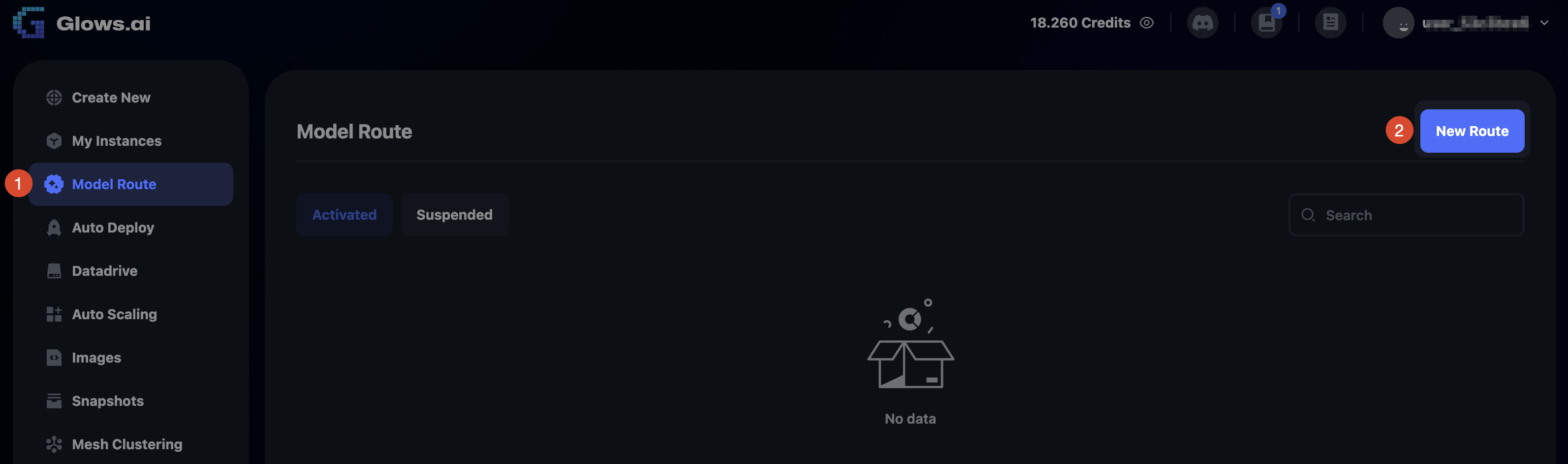
After logging in to the Glows.ai Platform, click Model Route in the left navigation menu to open the Model Route configuration page. Then click New Route to create a new route configuration.
https://platform.glows.ai
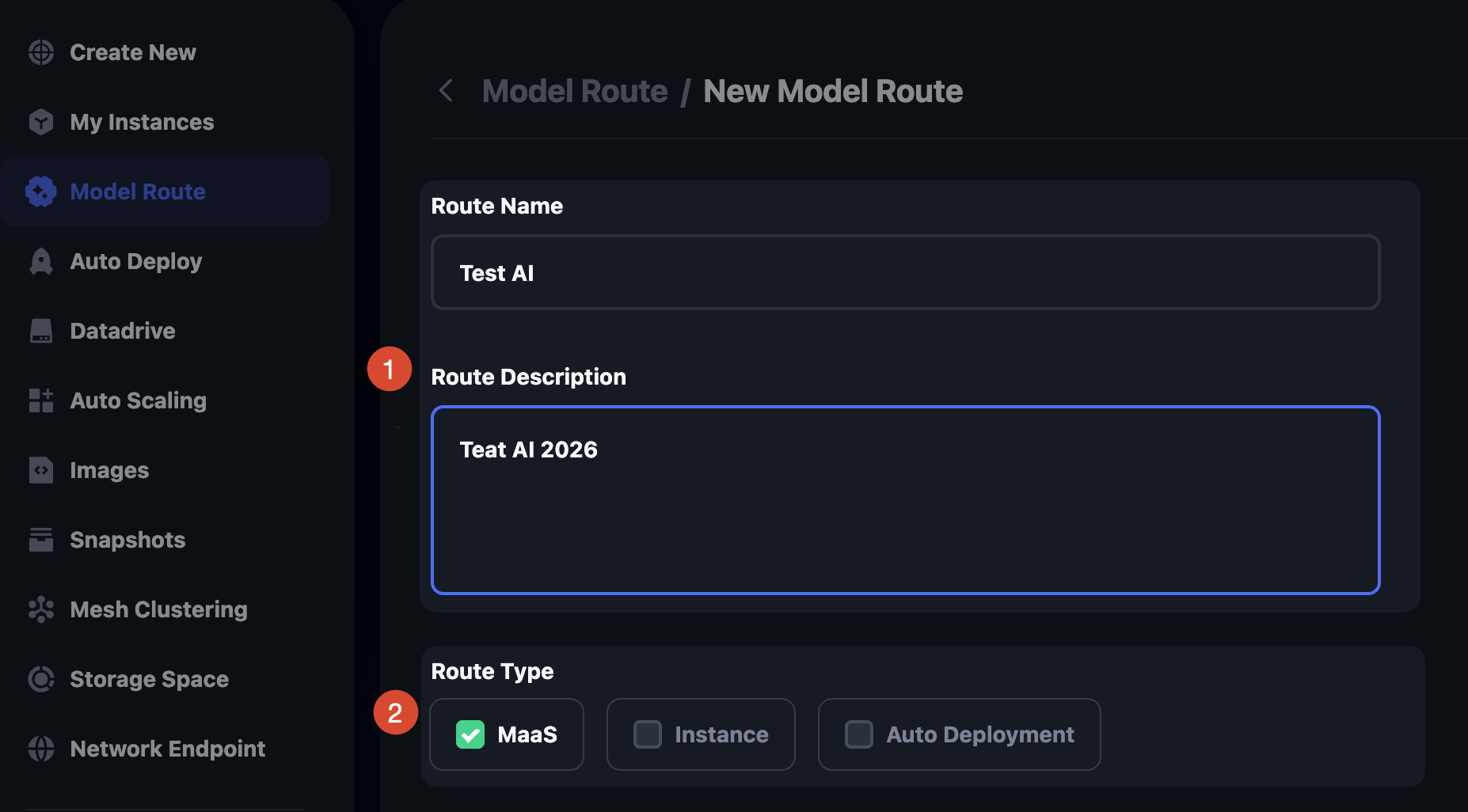
On the New Model Route page, you can enter the following information:
- Route Name: The name of the Model Route configuration. You can use it to distinguish different use cases, categories, or channels.
- Route Description: A detailed description of the Model Route configuration.
- Route Type: Specifies the upstream model provider used by the Model Route. There are three modes:
- MaaS stands for Model as a Service. Models are provided by built-in model providers on the platform, such as GPT, Claude, Qwen, and others.
- Instance means the model comes from an instance created within the Platform.
- Auto Deployment means the model comes from an Auto Deploy service configured on the Platform.
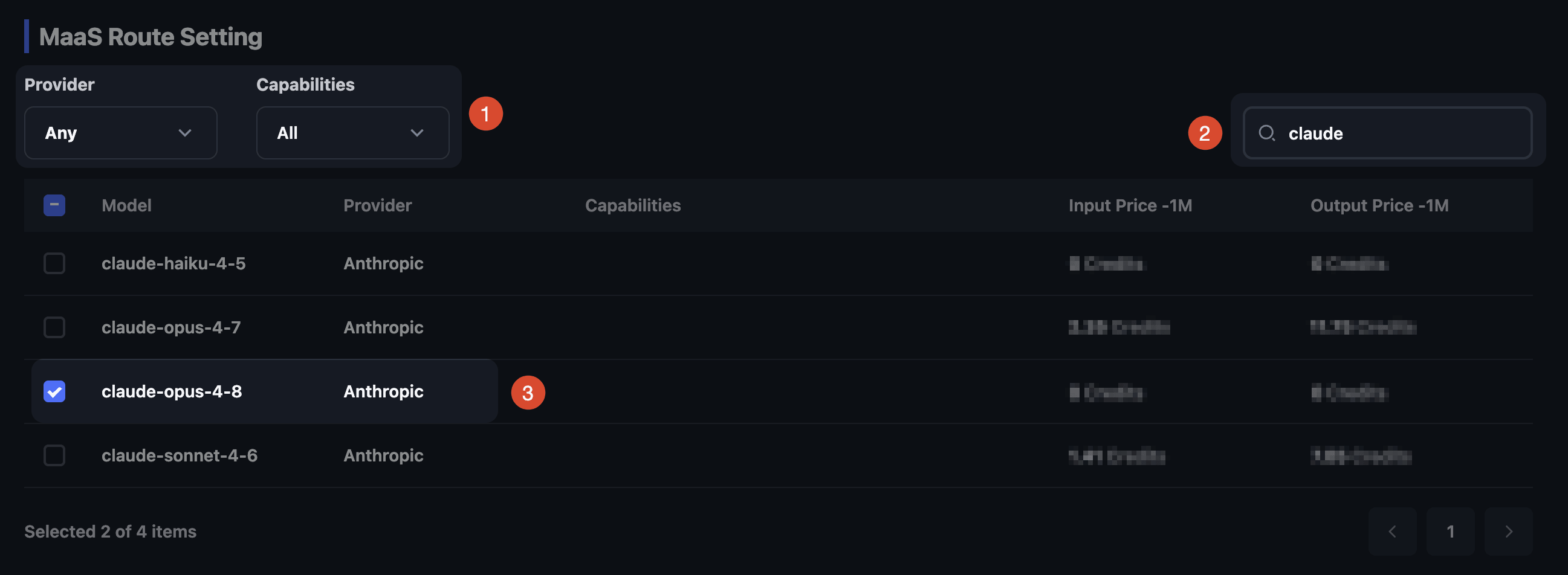
Currently, Route Type only supports MaaS mode. After selecting it, you can view the model list and filter models by provider or model name. Select the models you plan to use, and then continue to the next step.
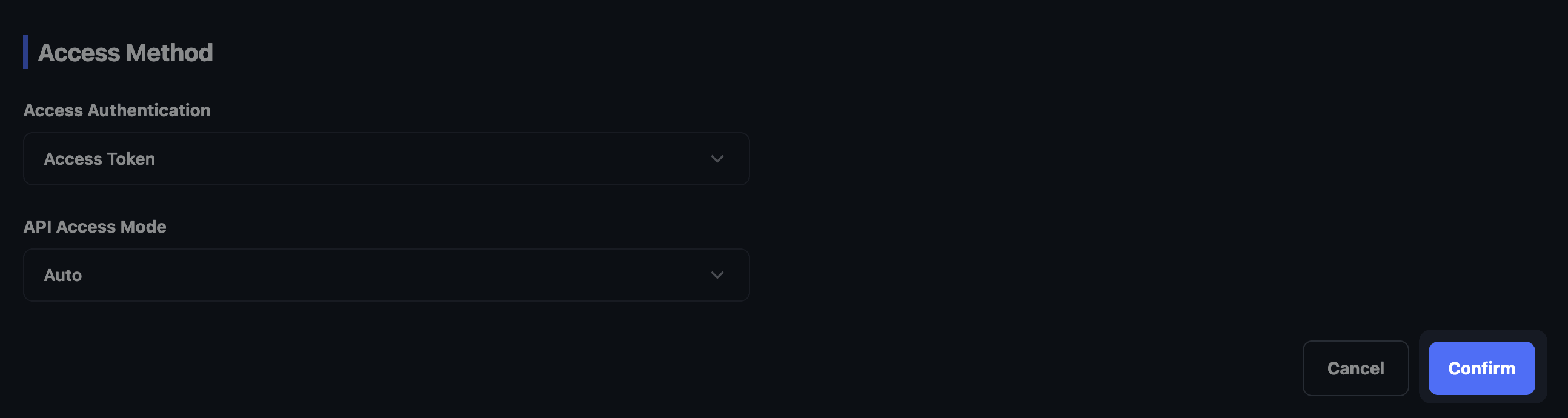
Under Access Method, you can configure how the models are accessed. Currently, the default and commonly used API Key authentication method is supported. Simply click Confirm to continue.
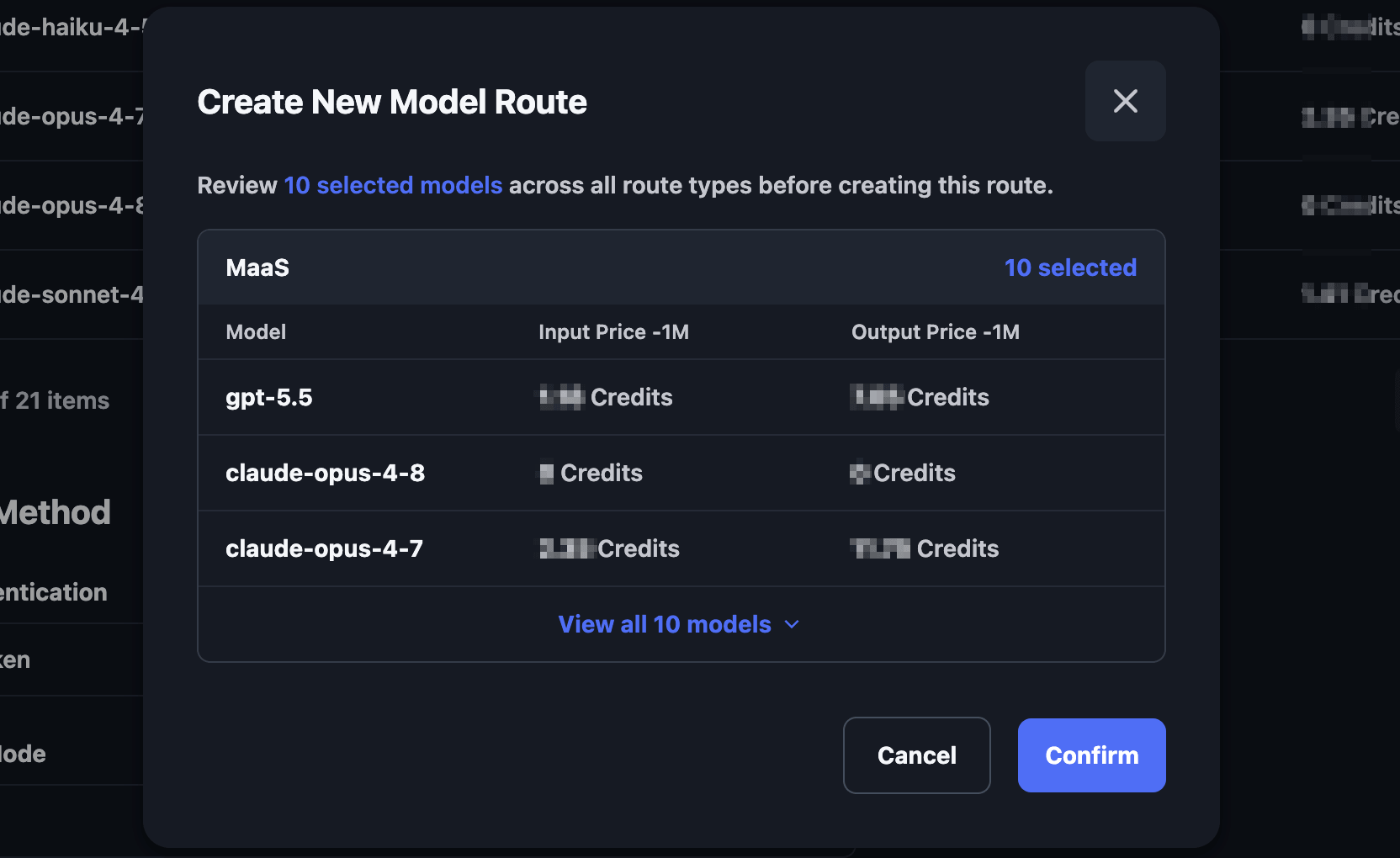
The selected model list and corresponding pricing information will be displayed again. After confirming that everything is correct, click the Confirm button in the dialog to complete the creation process.
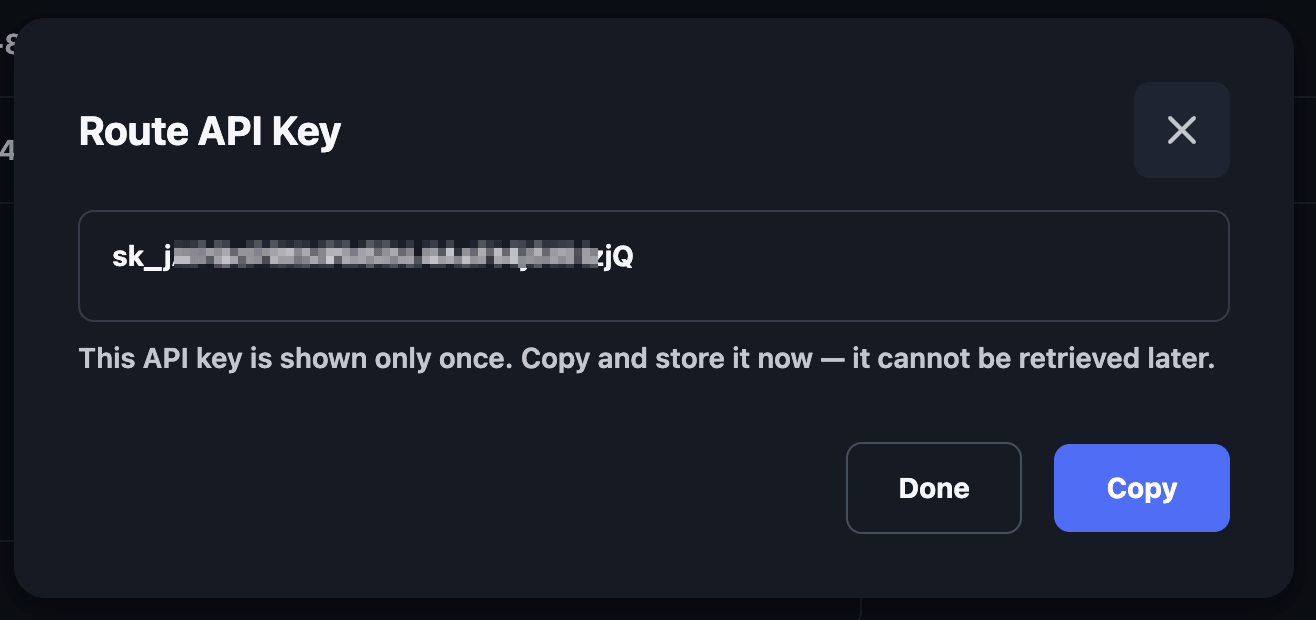
After the configuration is created, a dialog will display the Route API Key. This Key is shown only once when the route is created. Make sure to click the Copy button and save the API Key securely before clicking Done to close the dialog.
View Model Route Information
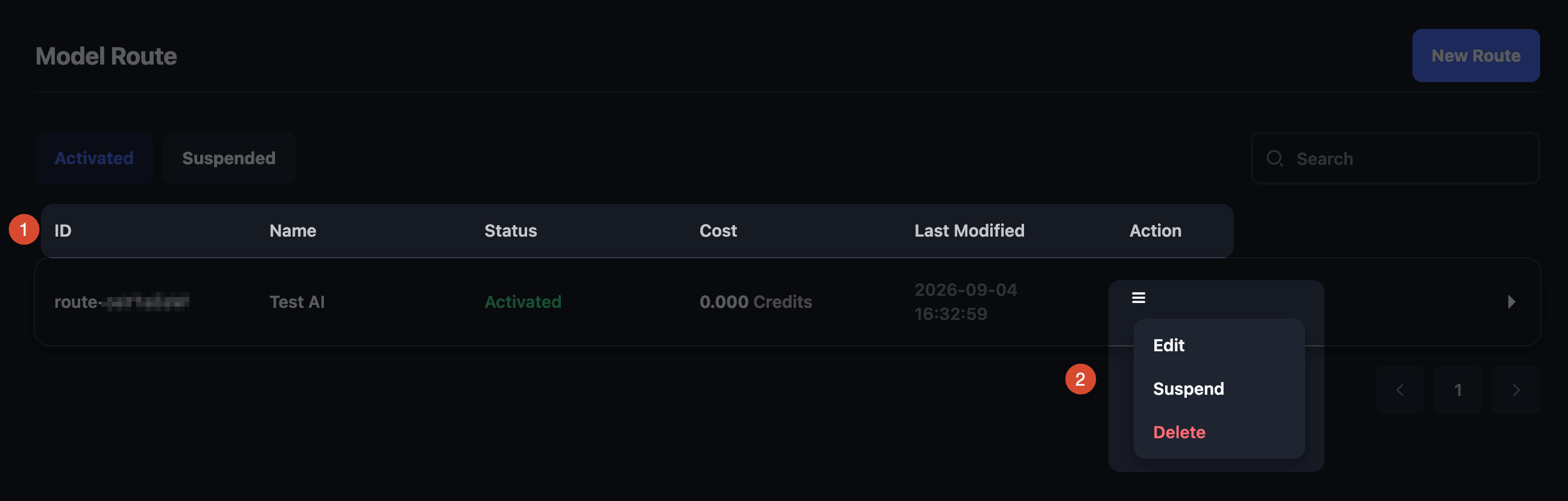
After the Model Route is created, it will appear in the Model Route list together with its basic information. The ID is mainly used for support purposes. If you encounter an issue, provide the Model Route ID together with the issue details to our support team so they can locate and resolve the problem more efficiently.
Click the button under Action to perform the following operations:
- Edit: Edit Model Route information
- Suspend: Suspend the Model Route
- Delete: Delete the Model Route configuration
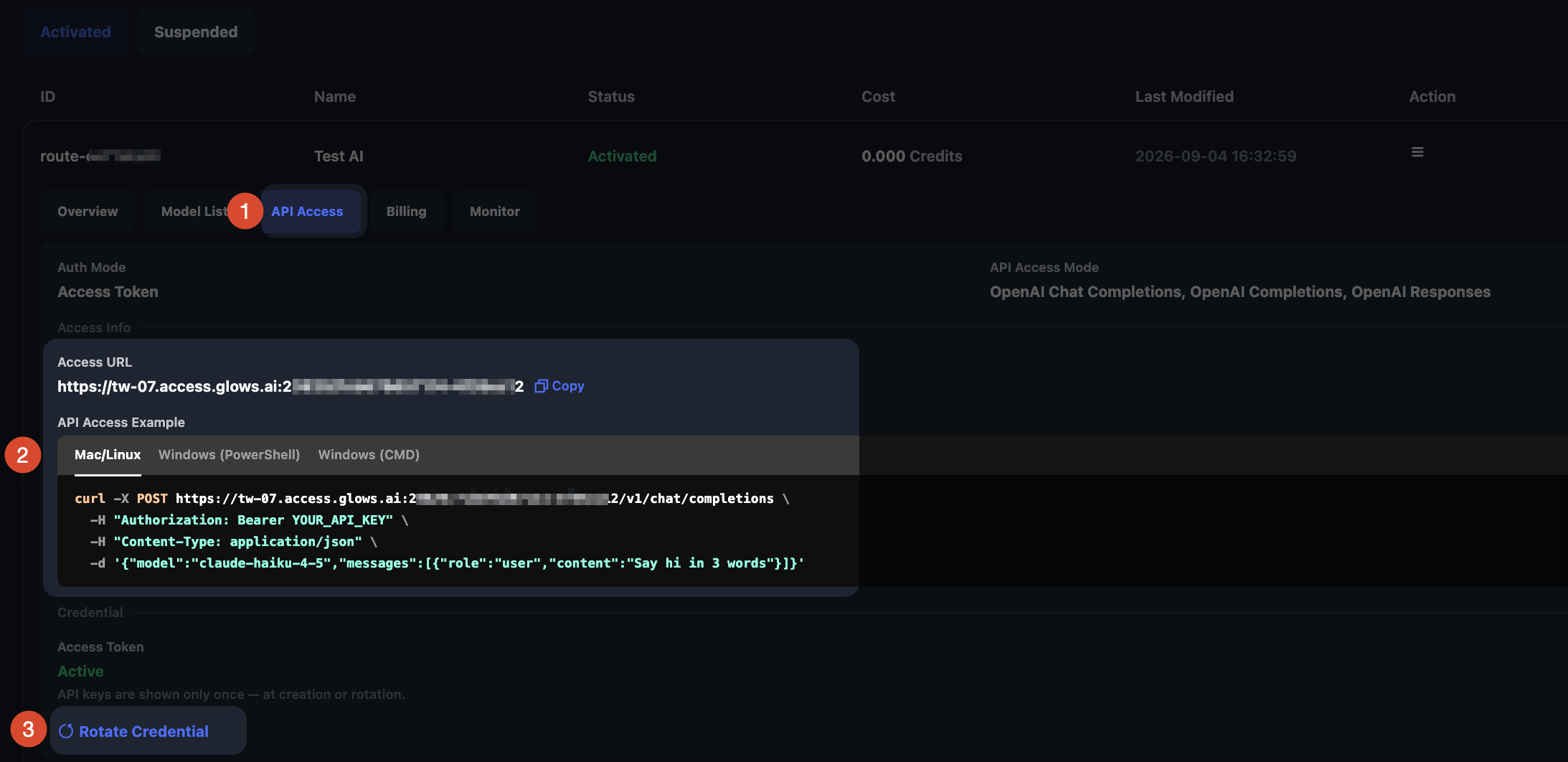
Click a Model Route configuration to view more detailed information. The first section is API Access, which displays the unique Access URL associated with the Model Route configuration, as well as test commands for different operating systems and environments.
You can also click Rotate Credential at the bottom of this page to reset the API Key. (Note: After a new API Key is generated, the previous API Key becomes invalid immediately.)
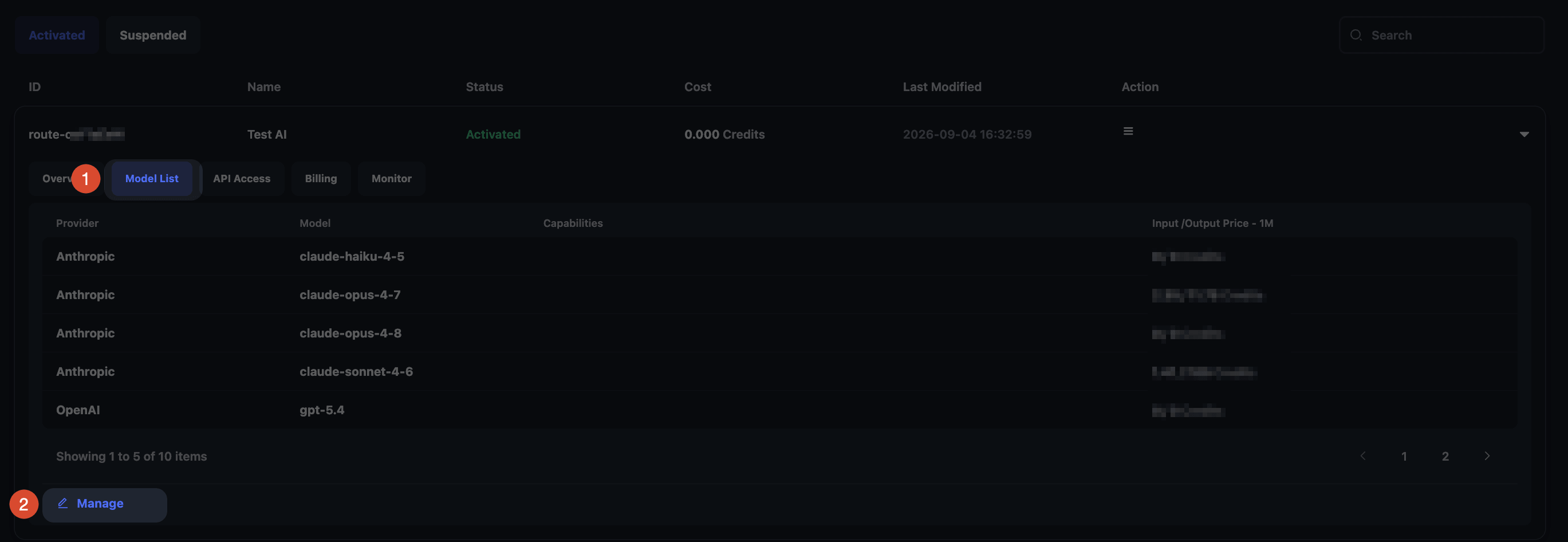
Under Model List, you can view the models currently available in this configuration. You can also click the Manage button at the bottom of the page to manage the model list, including adding or removing available models.
API Usage with curl
Glows.ai Model Route supports industry-standard API formats such as the OpenAI Compatible API and Anthropic Messages API. There is no need to modify your existing application architecture. Simply replace the API Endpoint and API Key to quickly access popular models such as GPT, Claude, DeepSeek, Kimi, and others.
Using the OpenAI Compatible API as an example:
- View the model list
curl -X GET \
  "https://tw-07.access.glows.ai:2xx9/7cxxx12/v1/models" \
  -H "Authorization: Bearer YOUR_API_KEY" \
  -H "Content-Type: application/json"
- Call a model for inference
curl -X POST \
  "https://tw-07.access.glows.ai:2xx9/7cxxx12/v1/chat/completions" \
  -H "Authorization: Bearer YOUR_API_KEY" \
  -H "Content-Type: application/json" \
  -d '{
    "model": "claude-opus-4-8",
    "messages": [
      {
        "role": "user",
        "content": "Say hi in 3 words"
      }
    ]
  }'
Configure Model Route for AI Agents
Supported Agent Tools
Glows.ai Model Route currently supports the following commonly used AI Agent tools:
- Codex: Supports the OpenAI Responses API and Agent workflows
- Claude Code: Supports the Anthropic Messages API format
- OpenCode: Supports OpenAI Compatible API model configurations
- OpenClaw: Supports custom model Endpoints and API Key configurations
- Hermes Agent: Supports OpenAI Compatible model integration
- DeepSeek Harness: Supports DeepSeek and other compatible model APIs
The exact configuration process may vary between Agent tools. Follow the official configuration method of each tool and enter the API Endpoint and API Key provided by Glows.ai Model Route.
Configure Model Route with CCSwitch
CCSwitch is a tool that supports configuration management for multiple AI Agents and model providers. It helps developers quickly manage different model services, including OpenAI- and Claude-compatible services.
Download the CCSwitch installer here: Click here
When using Glows.ai Model Route, you only need to add the corresponding API configuration in CCSwitch:
| Configuration | Description |
|---|---|
| API Provider | Select the corresponding model service type, such as OpenAI Compatible or Anthropic Compatible |
| API Key | Enter the API Key generated by Glows.ai Model Route |
| API Endpoint | Enter the Access URL provided by Model Route |
| Model Name | Enter the name of a model enabled in your Model Route |
After installing CCSwitch, select the AI Agent you want to configure. Using Codex as an example, click the Codex icon first, and then click the + button in the upper-right corner to add a new configuration.
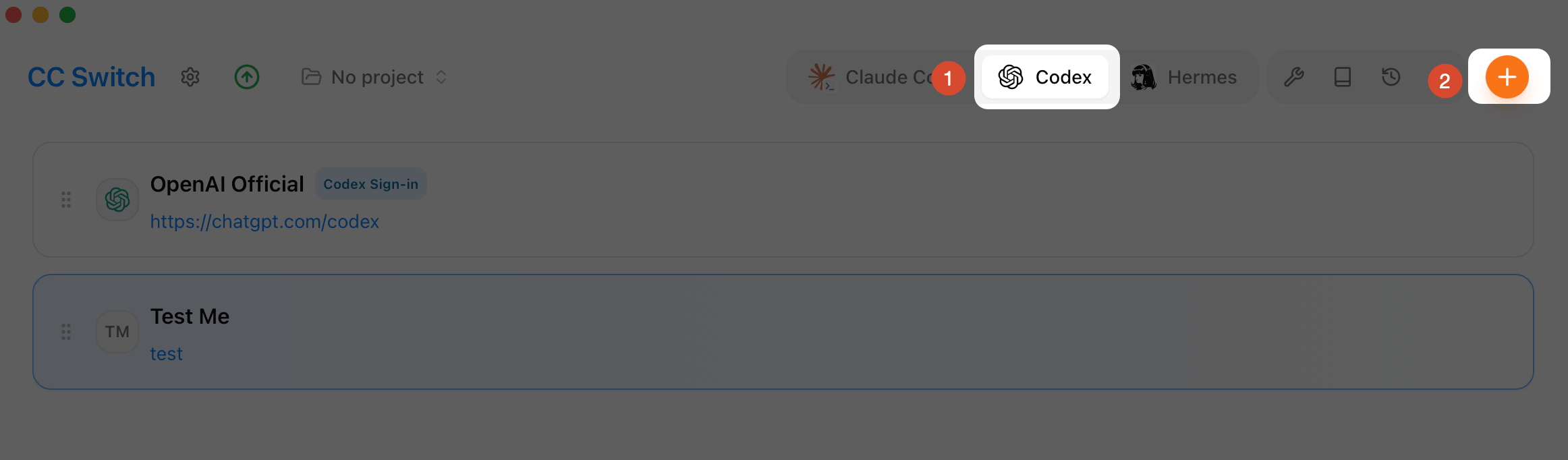
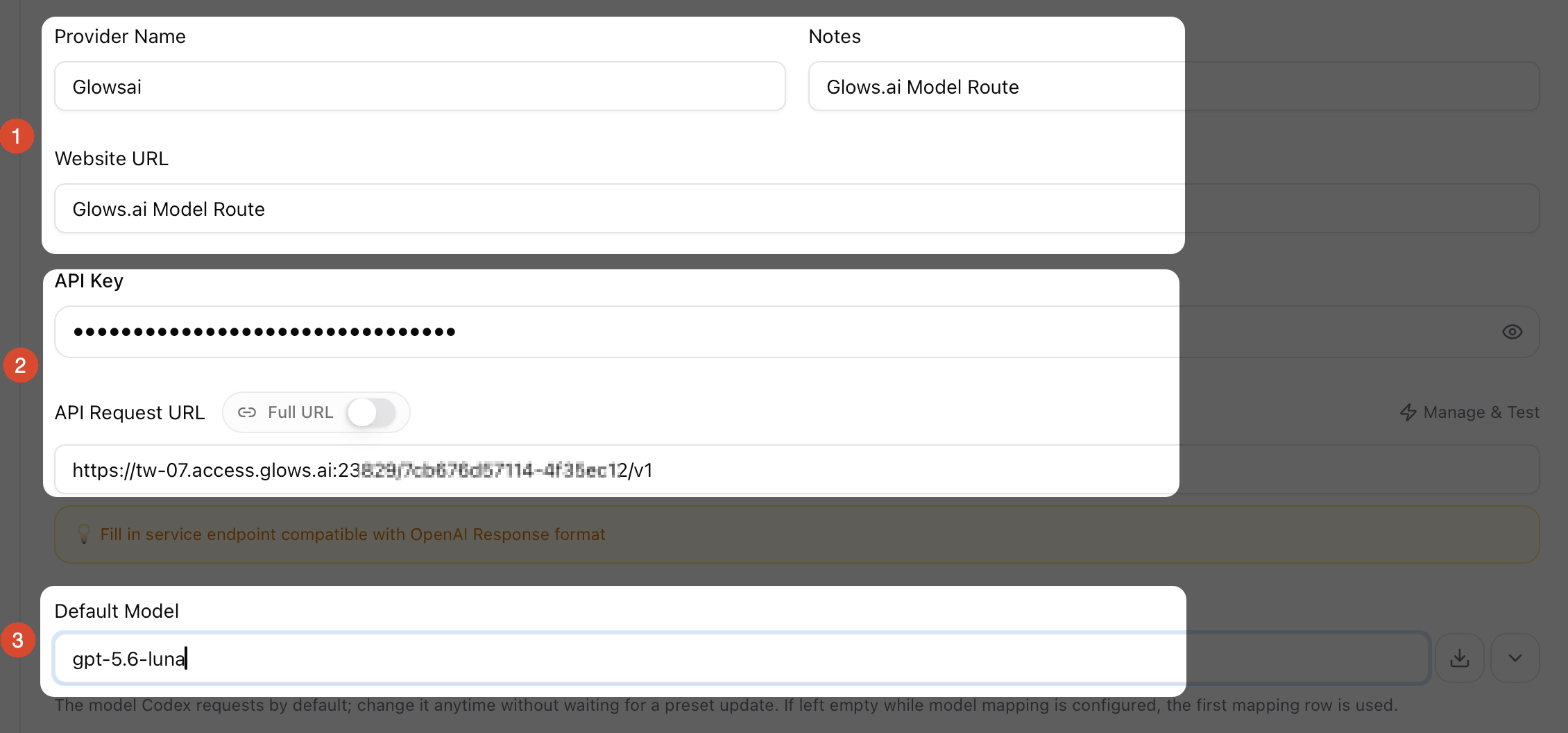
On the configuration page, scroll down to the Provider information section.
First, enter the descriptive information, such as the name, notes, and official website URL. The website URL is optional and, like the notes field, is mainly used to help you distinguish between different configurations.
Next, enter the API URL and API KEY obtained from the Model Route you created earlier. Finally, specify the default model you want to use. You can enter the model name manually, for example: gpt-5.6-luna.
Note: The model you enter must be one of the models selected when you created the Model Route. Otherwise, the request will fail because the model cannot be found.
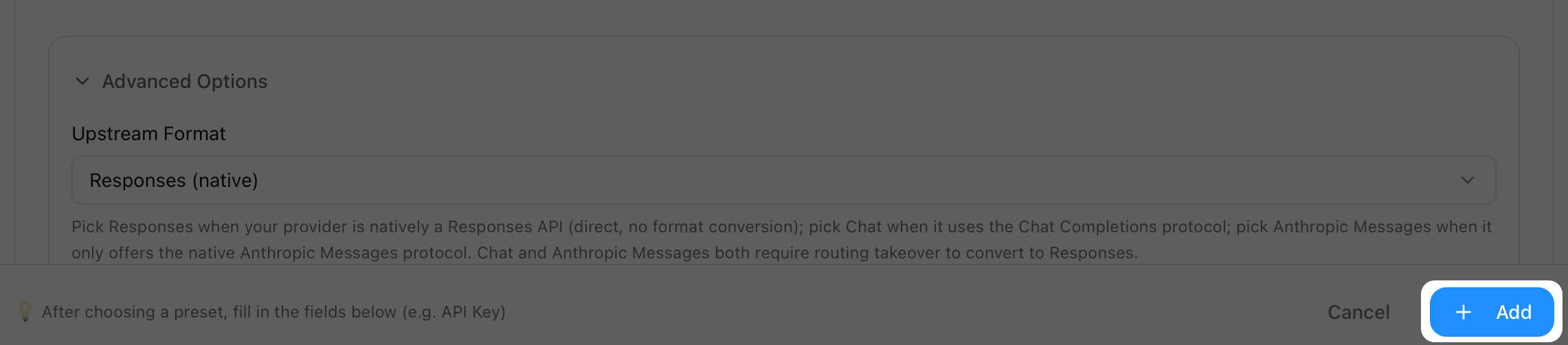
Leave this at the default value for this tutorial, and click the Add button to complete the configuration.
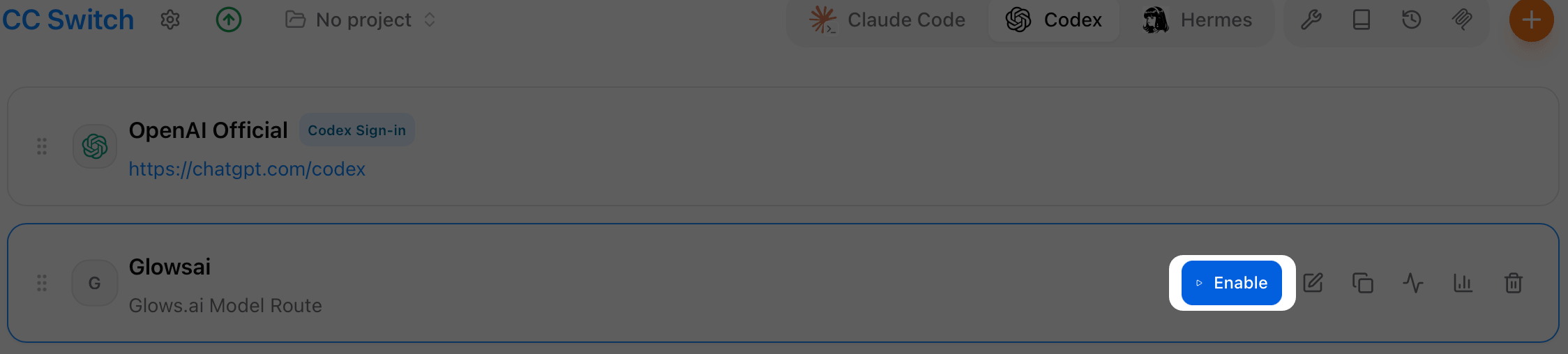
After the configuration is created, click Enable and you can start using it with Codex.
Note: After switching the Provider, you need to restart the Codex app for the new configuration to take effect.
FAQs
1. What is the current workflow for using Model Route?
The service is now officially available. Follow the steps in Create a Model Route to create a Model Route and obtain the API URL and API KEY. Then follow API Usage with curl and Configure Model Route for AI Agents to start using the service.
2. Can Model Route be used with Codex and Claude Code?
Yes. Model Route supports Codex and Claude Code, as well as other commonly used AI Agent tools such as Hermes Agent, OpenCode, and OpenClaw. For configuration instructions, see Configure Model Route for AI Agents.
Contact Us
If you have any questions or suggestions while using Glows.ai, feel free to contact us by email, Discord, or Line.
Email: support@glows.ai
Discord: https://discord.com/invite/glowsai
Line: https://lin.ee/fHcoDgG