Speed up your innovation with Glows.ai, Scale up your large model training
 Space Management
On the Space Management page, you have full control over your storage resources, allowing for flexible plan adjustments and space allocation to ensure optimal resource utilization. Below is an introduction and operation guide for these features:
Space Storage
At the top of the page, the Space Storage bar shows the current usage clearly, for example:
- Using 6.63GiB of 50GiB
- Expires on 2025-01-24

Upgrade Storage Plan
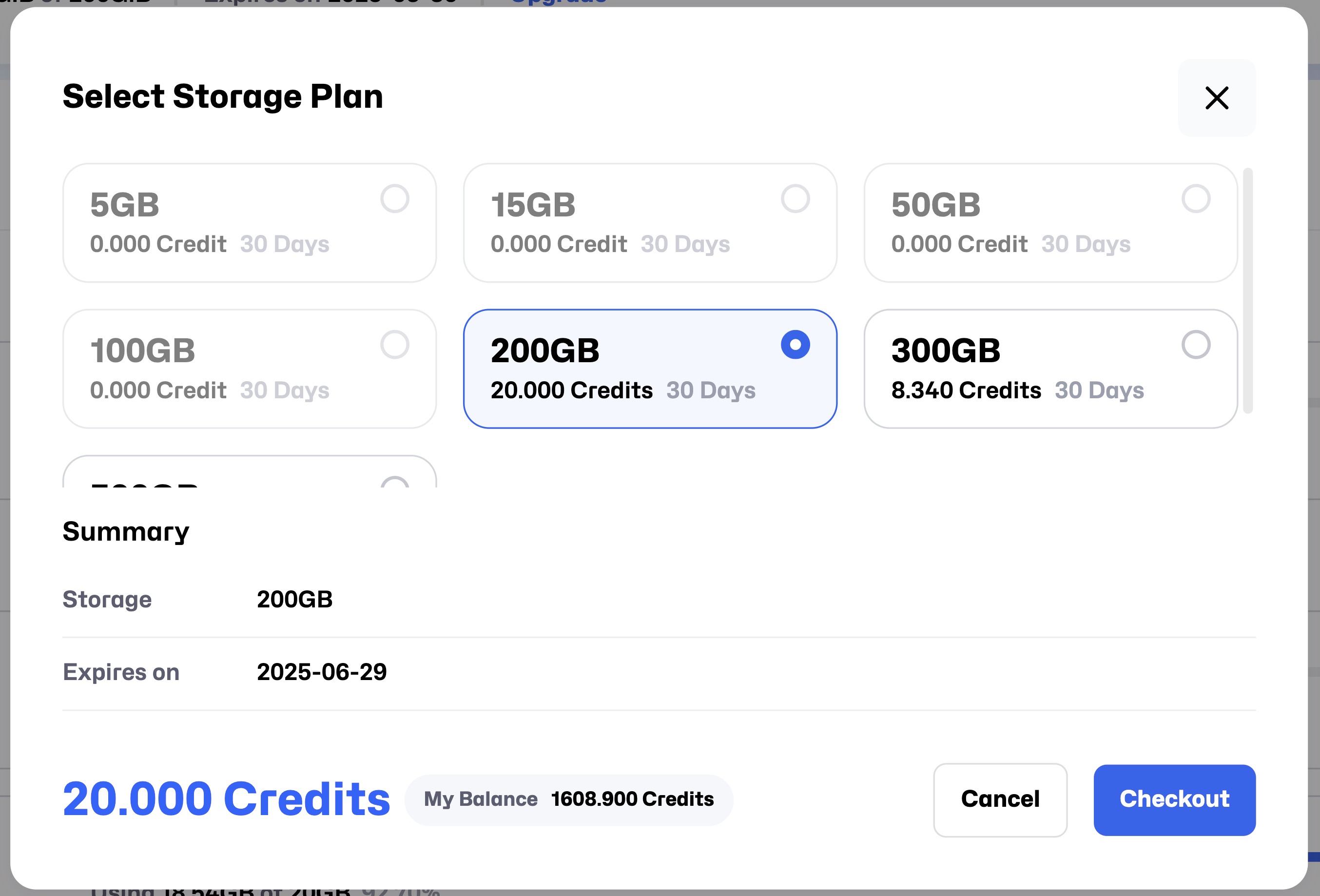
Click the Upgrade button to enter the Select Storage Plan page, where you can choose different capacity plans. Each plan corresponds to the Credit required, and all plans are valid for 30 Days. After selecting a plan, a Summary will be displayed below, including:
- Storage: Details of the selected storage plan.
- Expire: The expiration date of the plan.
- Total Price: The total price.
Billing Adjustment
- Upgrade Plan: The expiration date remains unchanged, total storage capacity increases, and you will be charged based on the remaining time multiplied by the price difference between the plans.
- Downgrade Plan: The expiration date remains unchanged, total storage capacity decreases, and no refunds are issued for the price difference.
- Renew same size plan: Total storage capacity remains unchanged, and the expiration date is extended by 30 days.
After selecting a plan, you can proceed with the payment by clicking the Charge button or directly deduct the corresponding Credit by clicking Modify Plan.
Quota
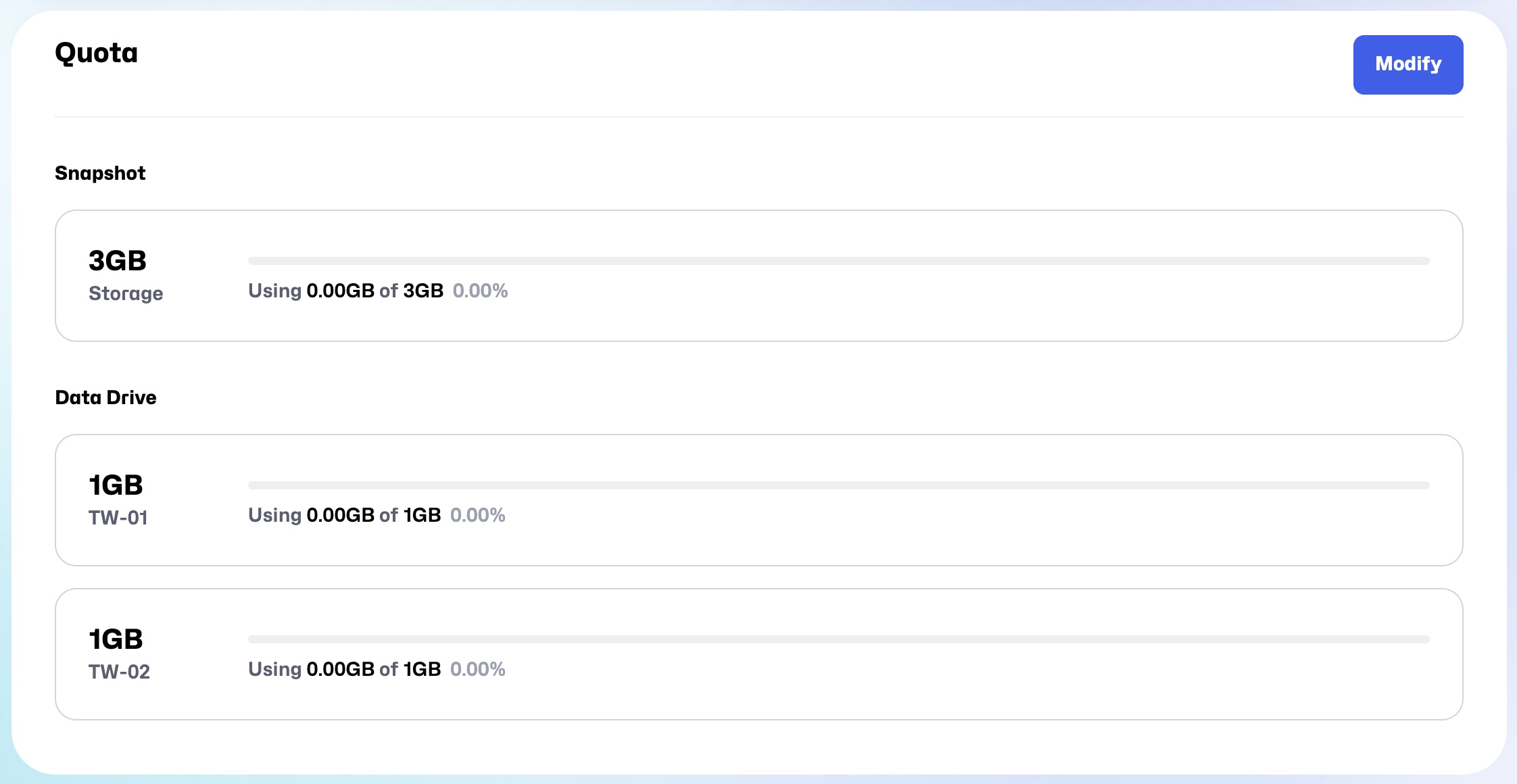
Click the Modify button to adjust the storage space available for Snapshots and Data Drive.
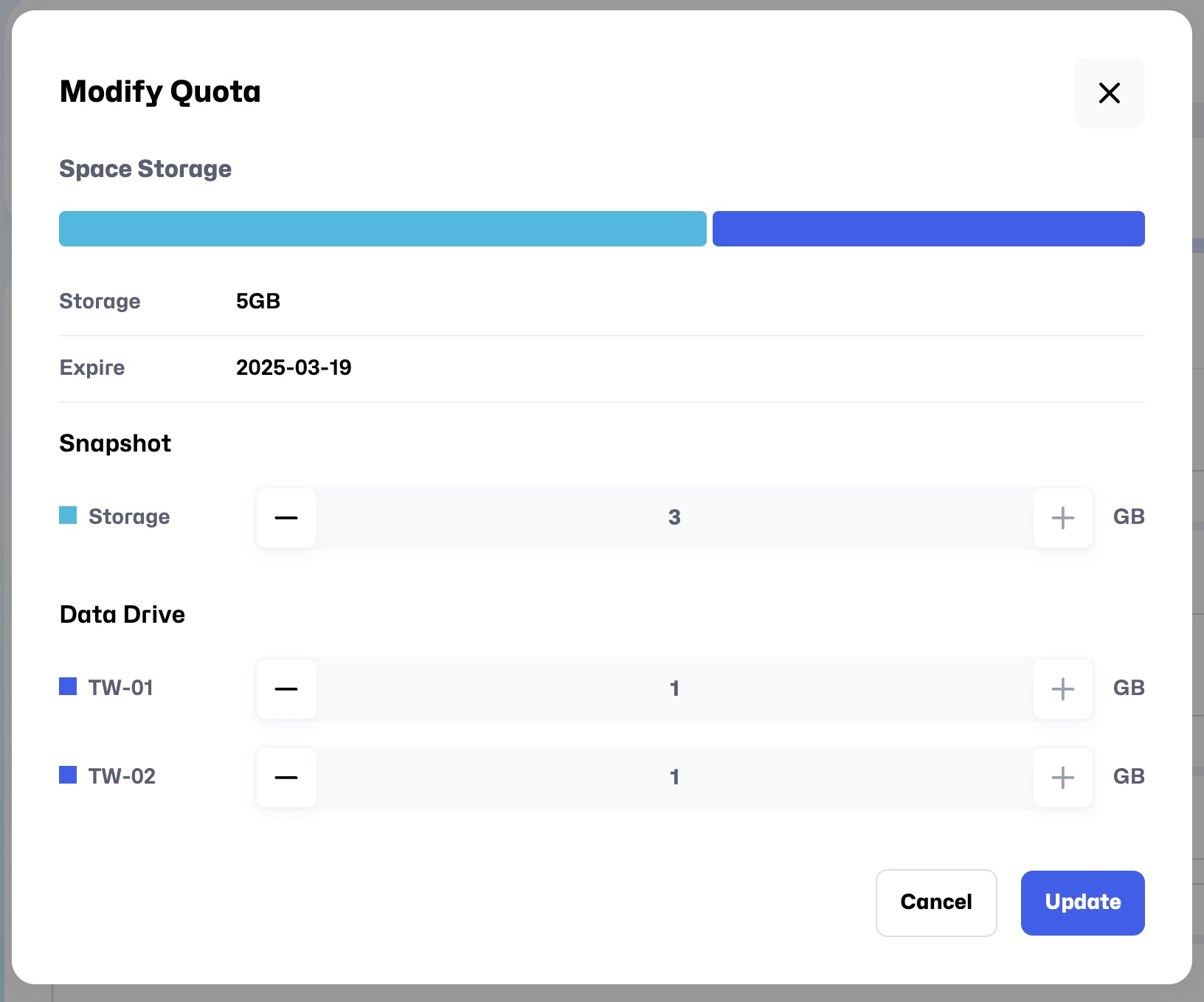
After the adjustment, you will see the individual storage usage for Snapshots and Data Drive on the page, for example:
- Using 0.00GB of 3GB 0.00%