 Speed up your innovation with Glows.ai, Scale up your large model training
 Matrix0
Glows.ai Remote PostgreSQL Database Matrix0 Usage Guide
Feature Overview
What is the Remote PostgreSQL Service?
Glows.ai provides a managed PostgreSQL database service with the following features:
| Feature | Description |
|---|---|
| Relational Storage | Standard PostgreSQL functionality for storing user data, configurations, etc. |
| Vector Storage | Built-in pgvector extension supporting storage and retrieval of vector data |
| Maintenance-Free | No need to install, configure, or maintain the database |
| High Performance | Dedicated instances with low latency and high throughput |
| Automatic Backup | Data is automatically backed up, ensuring safety and reliability |
Applicable Scenarios
- AI Agent projects (RAG, vector retrieval)
- Large Language Model applications (conversation memory, knowledge base)
- Data analytics projects
- Any project requiring a database
Start building and testing with Matrix0 while we continue improving its performance, scalability, and developer experience.
Billing is not enabled during Alpha. Usage-based pricing will be introduced as Matrix0 moves toward broader availability.
Service Activation
After logging in to the Glows.ai platform, you can directly access Matrix0 through the following entry point.
https://matrix0.glows.ai
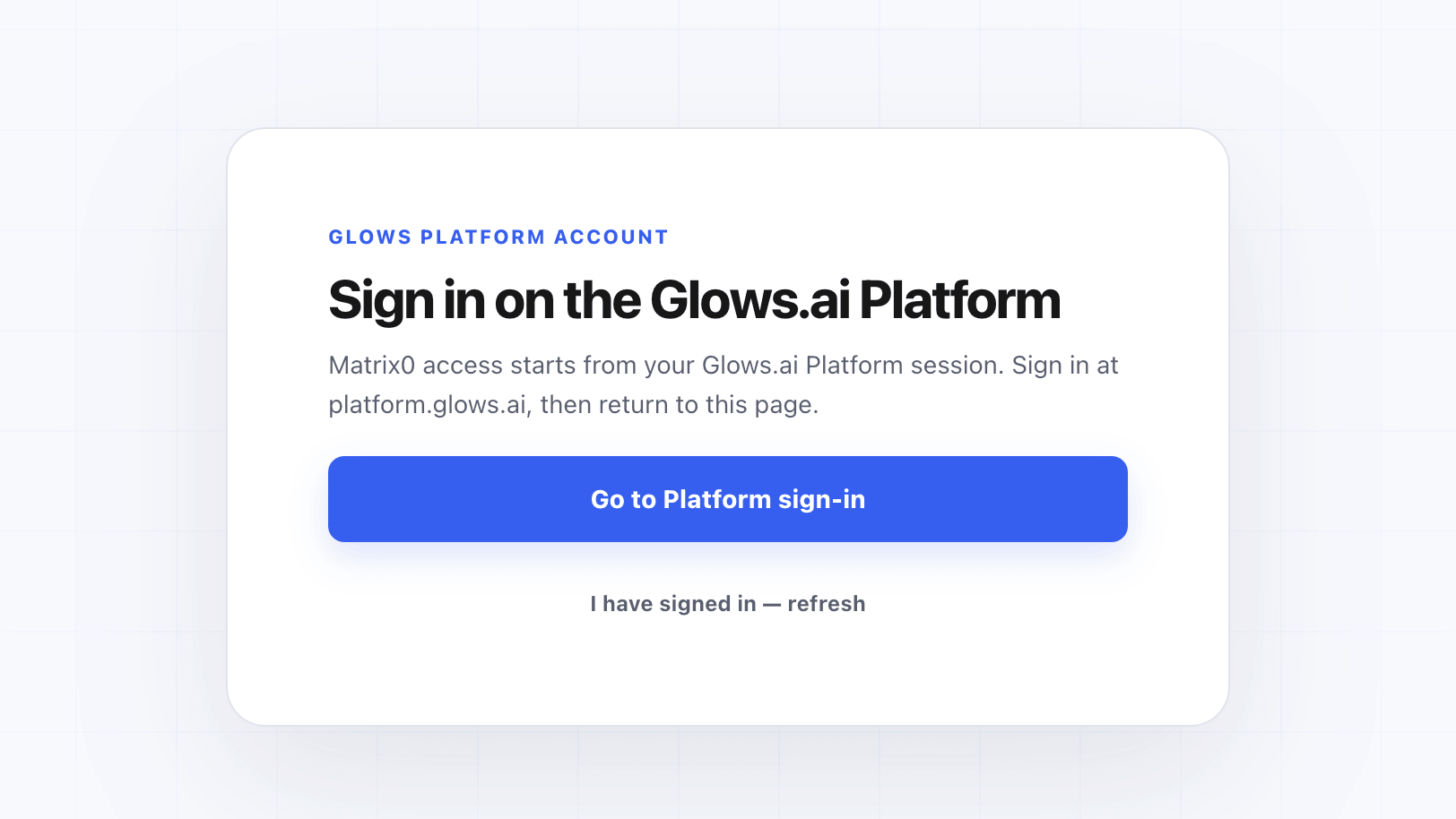
Open the Matrix0 official website through your browser. Currently, Matrix0 and the Glows.ai Platform share the same account system. If you have not logged in to the Platform, click the Go to Platform sign-in button to complete the login process. After successful authentication, you can start using Matrix0.
If the login status is not updated immediately, you can click I have signed in - refresh in the interface to refresh the authentication status.
If you encounter any issues during use or have new requirements, you can contact us here for assistance.
Creating a Project
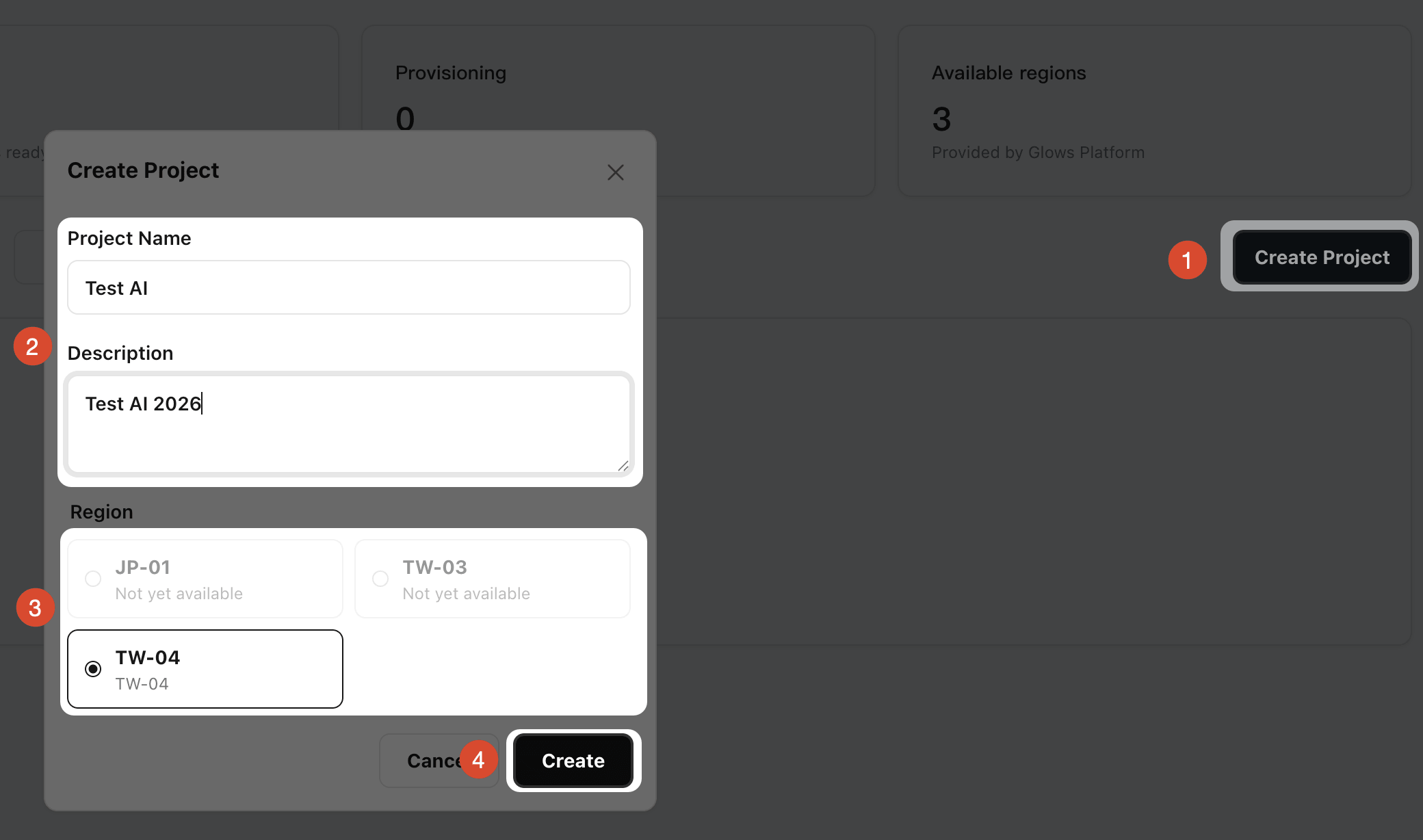
After logging in to Matrix0, click Create Project to create a new project. Enter the project name and description, then click Create to complete the project creation.
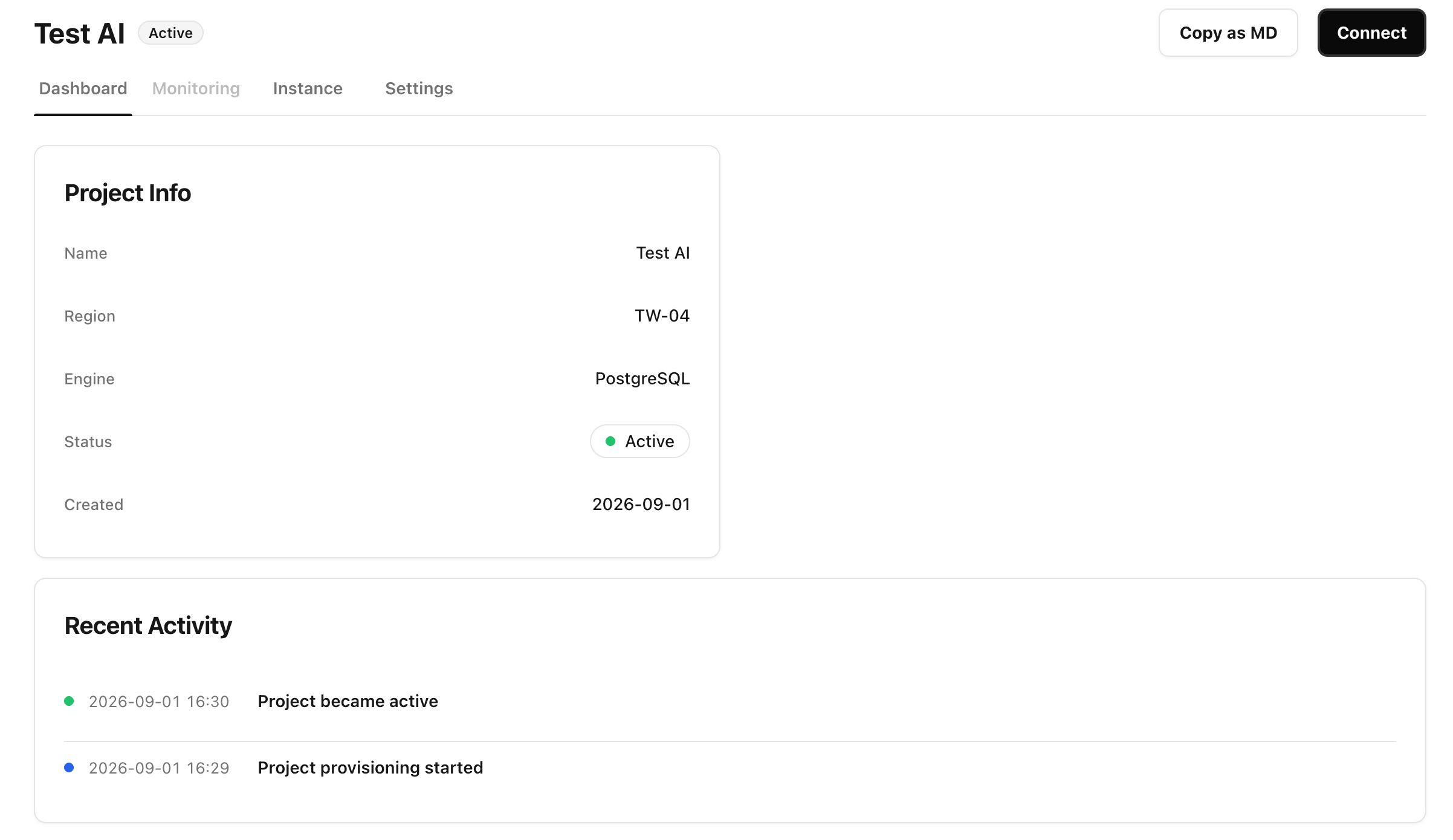
After the project is created, you can view the basic project information. To use the service officially, you need to go to Glows.ai Platform to create an instance first, and then return to this interface to perform the binding operation under Instance.
Creating an Instance
Create an instance on-demand in Glows.ai. You can refer to the tutorial. This guide uses the CUDA12.8 Torch2.8.0 Base (img-6ypgvgpw) image.
In the Create New interface, select Inference GPU -- 4090 as the Workload Type. Then select the CUDA12.8 Torch2.8.0 Base image, which has been preconfigured by the official team with the basic environment required for AI projects, including CUDA, PyTorch, and other dependencies.
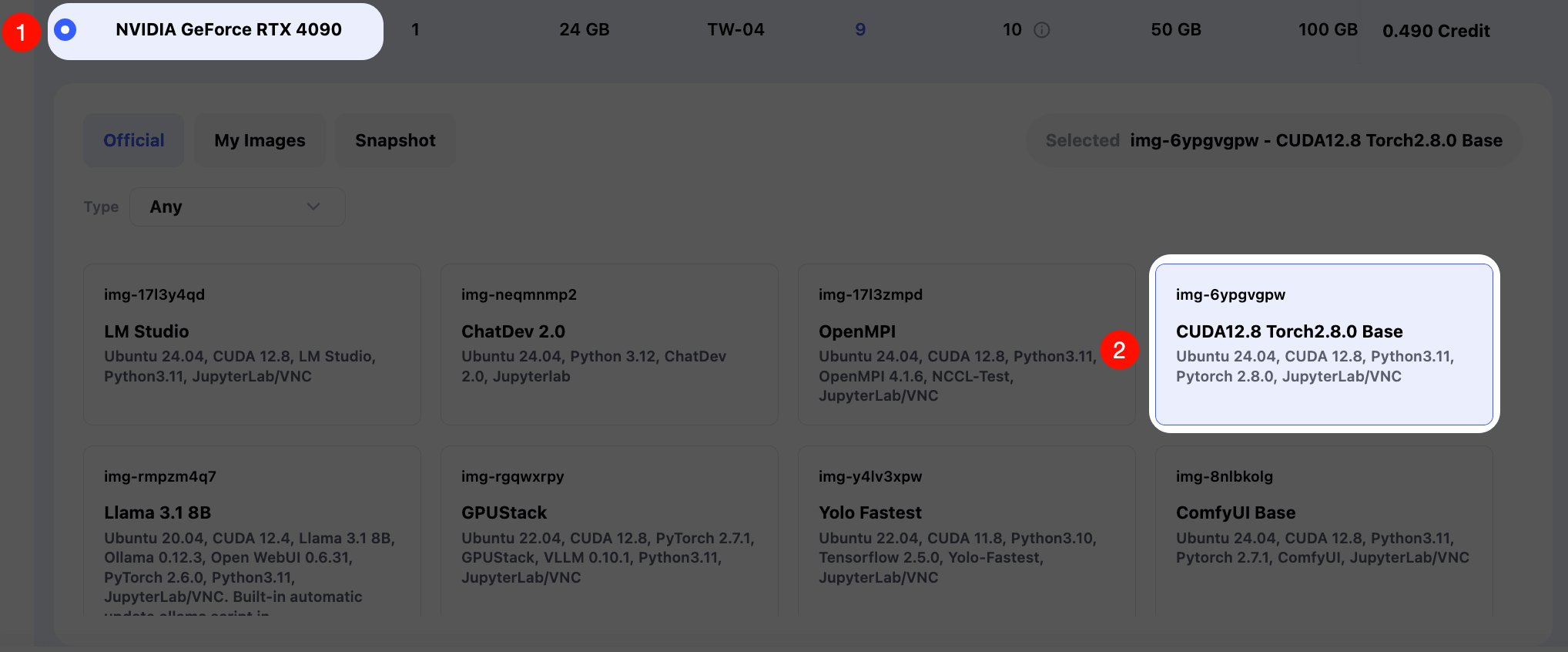
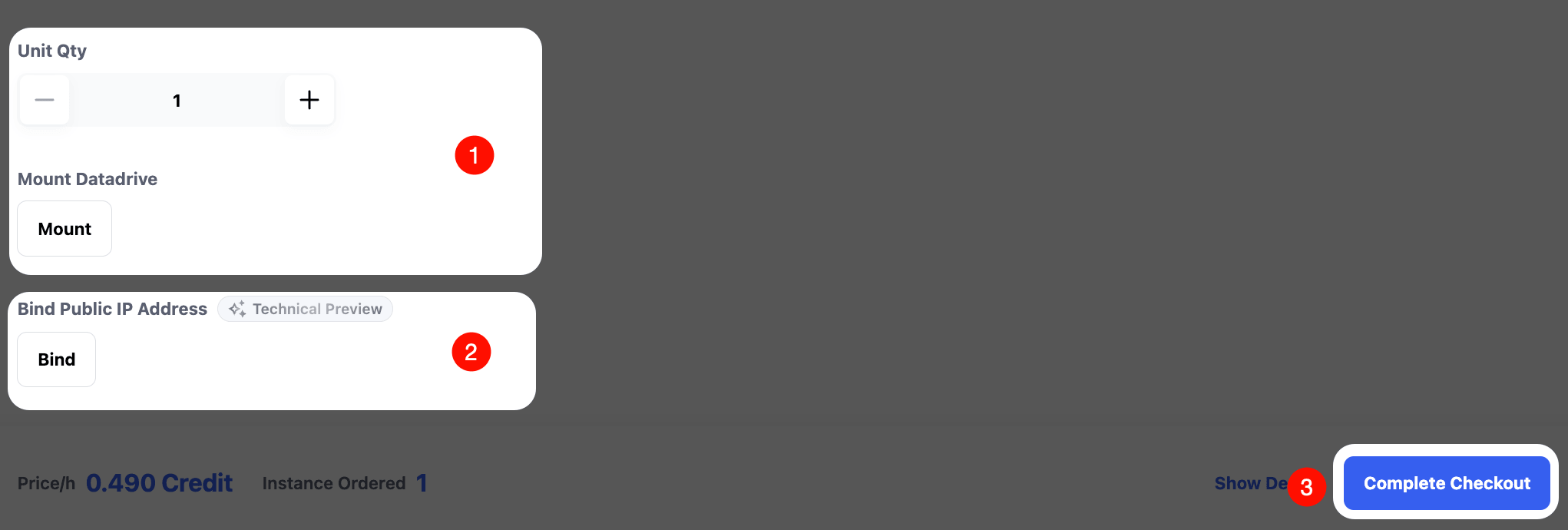
You can configure Unit Qty (number of GPUs) and Mount Datadrive (Glows.ai cloud storage) according to your requirements.
Currently, the Matrix0 database functionality only supports usage under the Bind IP mode. When creating an instance, click the Bind button under Bind Public IP Address to configure a static IP address.
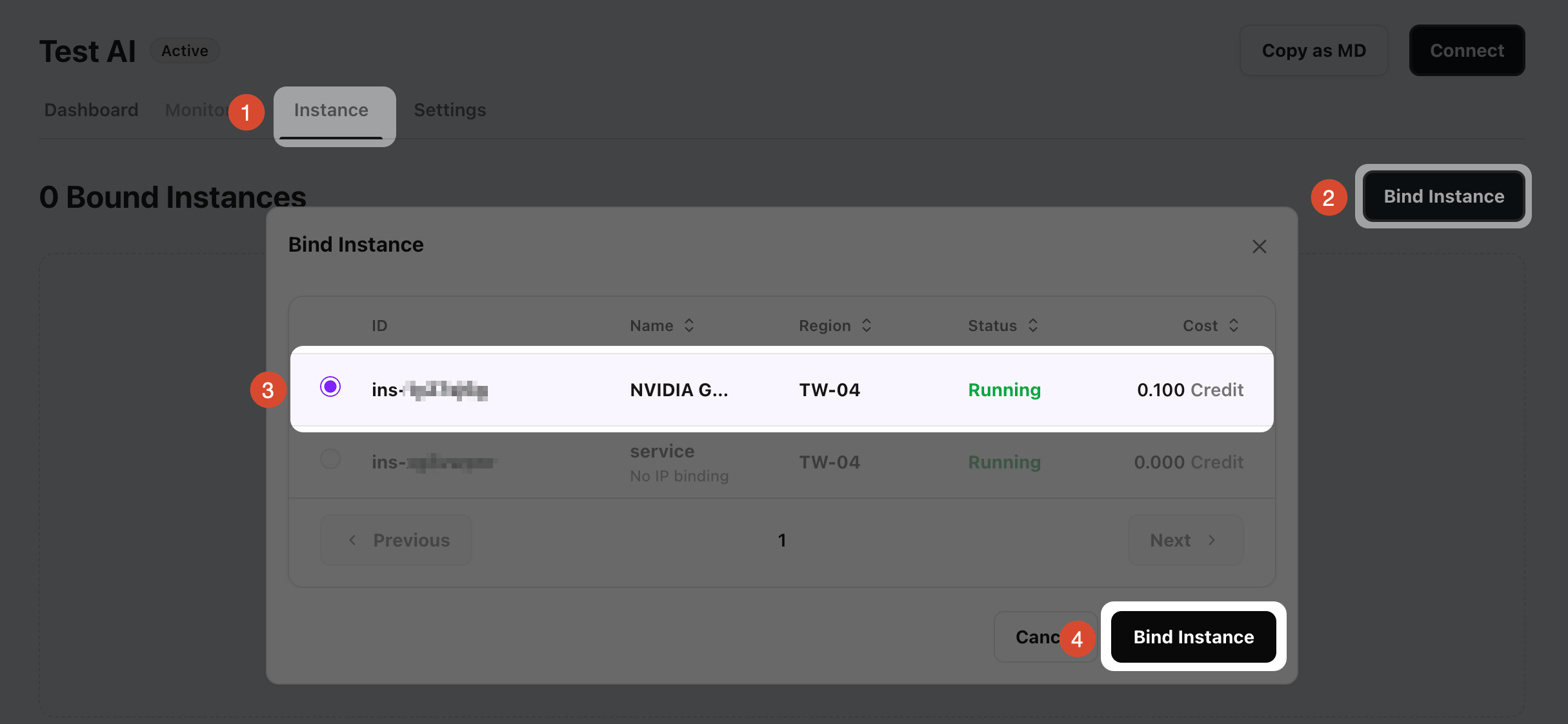
After the instance starts successfully, return to the Matrix0 interface. Click Instance -- Bind Instance under the project, select the instance you have just created with the Bind IP configuration enabled, and then click Bind Instance to complete the binding operation.
You will receive the following information:
| Parameter | Description | Example |
|---|---|---|
HOST | Database address | 172.172.1.1 |
PORT | Database port | 3306 |
USER | Username | glowsai |
PASSWORD | Password | ******** |
DATABASE | Default database | postgres |
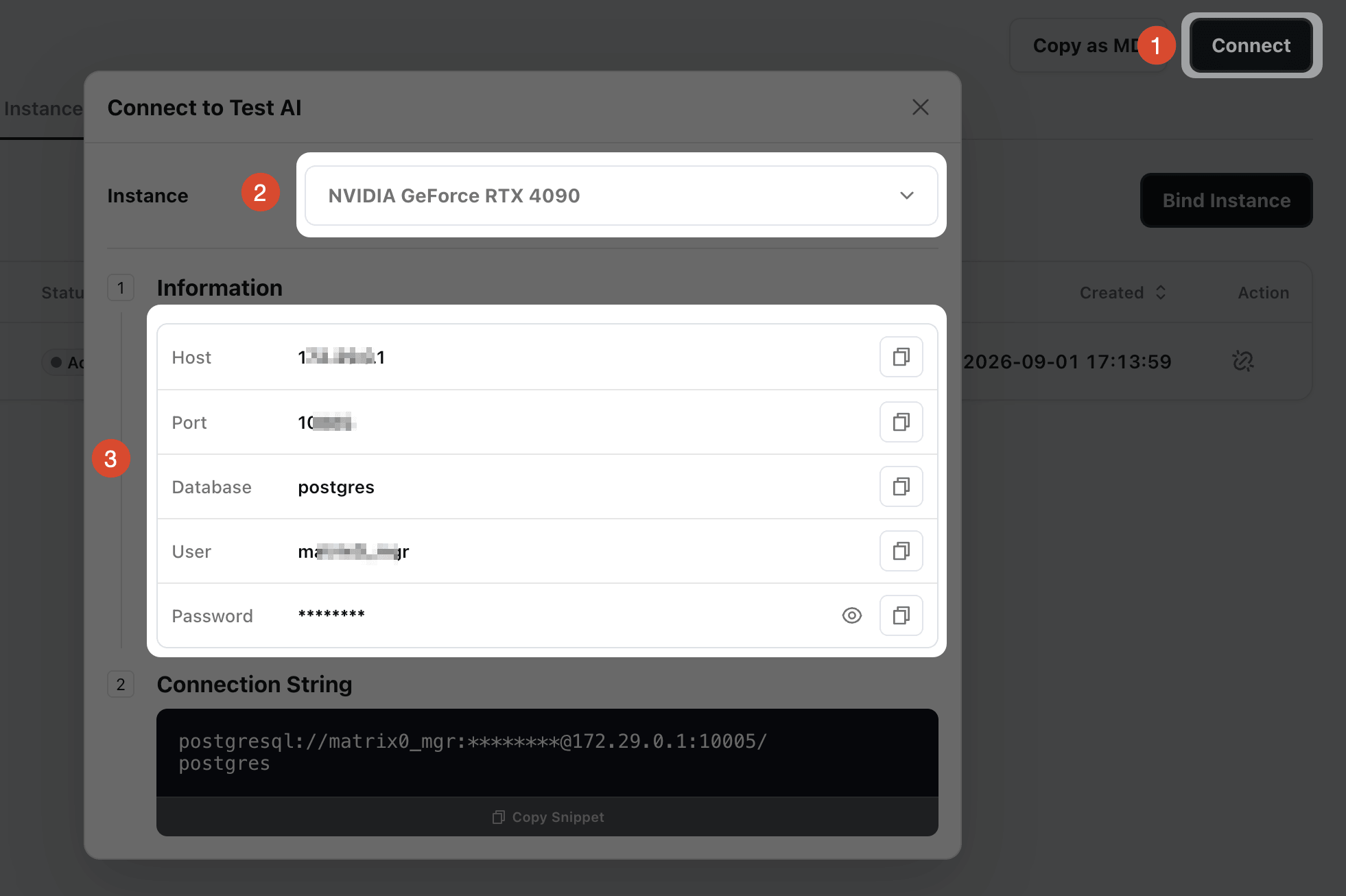
Note:
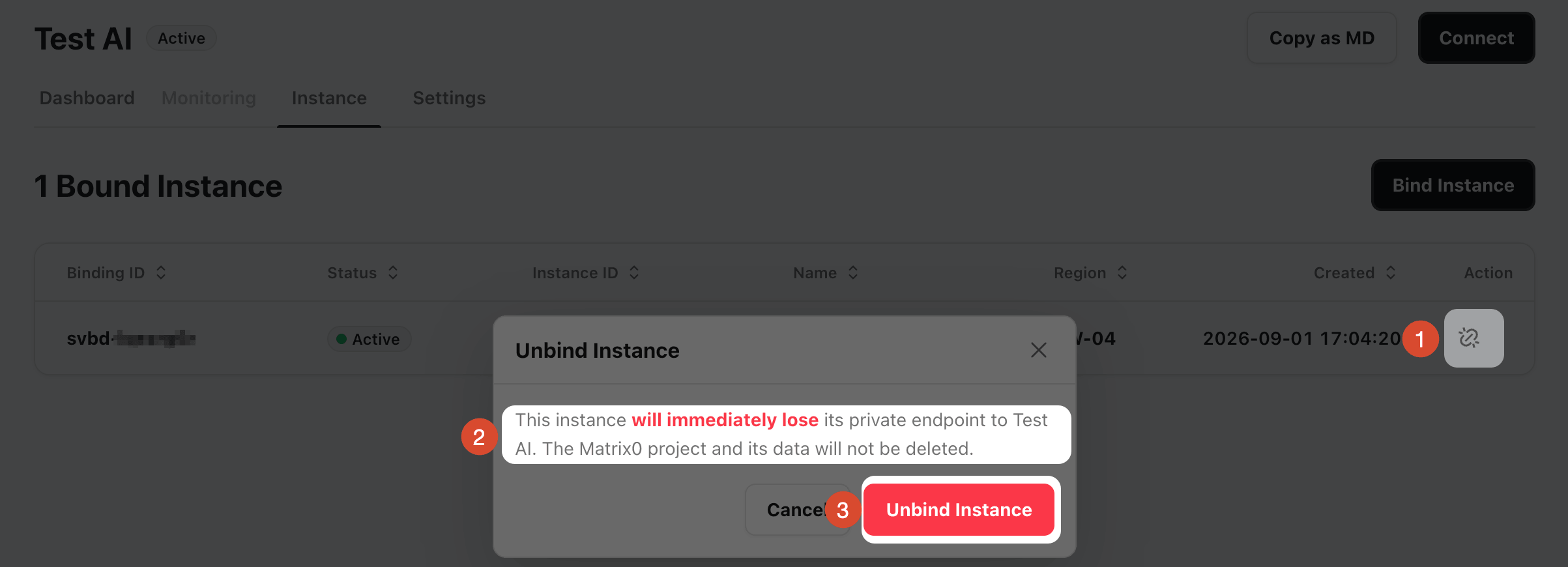
- When you release an instance, or manually unbind the instance from the Matrix0 interface, the binding record will be deleted. However, the backend database data will not be deleted, and the database can still be rebound and used when a new instance is created.
- If the Bind IP is no longer needed, you must manually release it to stop billing. Releasing the Bind IP will not affect the Matrix0 database data.
Basic Usage
Install Connection Tool
To connect directly to the database, you can use the postgresql-client tool. After SSH connecting to the instance, enter the following commands to install the tool package.
# Install PostgreSQL client
apt-get update && apt-get install -y postgresql-client

# Verify installation
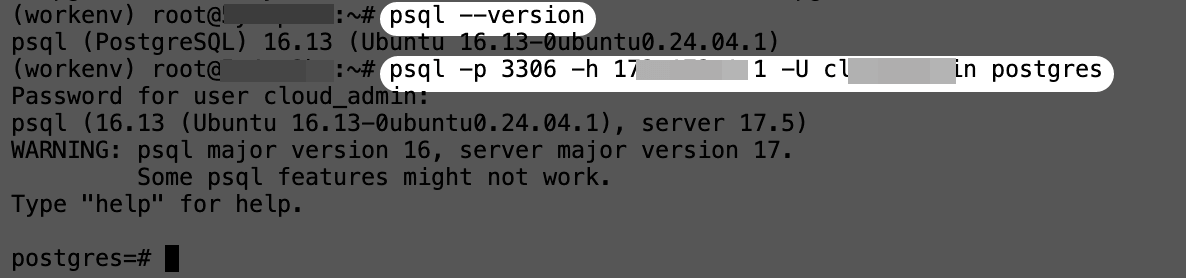
psql --version

Connect to Database
Use the psql command line to connect. Follow the instructions below.
# Basic connection command
psql -h <HOST> -p <PORT> -U <USER> -d <DATABASE>

# Example (replace with actual information provided by the assistant)
psql -h 172.172.1.1 -p 3306 -U glowsai -d postgres
Create Database
-- Create a new database
CREATE DATABASE my_project_db;

-- Connect to the new database
\c my_project_db

Basic Vector Data Operations
Same as standard database operations. The following demonstrates create, delete, query, and update operations.
Create Vector Table
-- Install vector extension
CREATE EXTENSION IF NOT EXISTS vector;

-- Create a table with a vector column
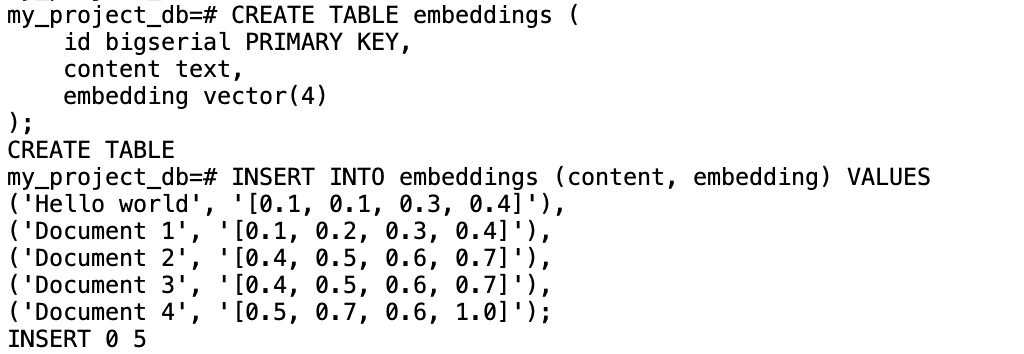
CREATE TABLE embeddings (
    id bigserial PRIMARY KEY,
    content text,
    embedding vector(4)
);
Insert Vector Data
-- Insert test data (simulated vectors)
INSERT INTO embeddings (content, embedding) VALUES
('Hello world', '[0.1, 0.1, 0.3, 0.4]'),
('Document 1', '[0.1, 0.2, 0.3, 0.4]'),
('Document 2', '[0.4, 0.5, 0.6, 0.7]'),
('Document 3', '[0.4, 0.5, 0.6, 0.7]'),
('Document 4', '[0.5, 0.7, 0.6, 1.0]');
Vector Similarity Search
-- Cosine distance (recommended for text embeddings)
SELECT id, content, embedding <=> '[0.1, 0.2, 0.3, 0.3]'::vector as distance
FROM embeddings
ORDER BY embedding <=> '[0.1, 0.2, 0.3, 0.3]'::vector
LIMIT 2;
Description:
<=>is the cosine distance operator1 - distanceconverts to similarity (range 0–1, higher means more similar)

Update Vector Data
-- Update vector of a specific record
UPDATE embeddings
SET embedding = array_fill(0.5, ARRAY[4])::vector
WHERE id = 1;

-- Verify update
SELECT id, content, embedding FROM embeddings WHERE id = 1;

Delete Vector Data
-- Delete specified record
DELETE FROM documents WHERE id = 3;

-- Check remaining records
SELECT COUNT(*) FROM embeddings;

-- Delete all records
DELETE FROM embeddings;
Python Connection Example
You can use system tools for direct connection, or configure it in a Python program. First, run the following command to install the connection library.
pip install psycopg2-binary
Test reading from the database:
import psycopg2

conn = psycopg2.connect(
    host="172.172.1.1",
    port=3306,
    user="glowsai",
    password="xxxxx",
    dbname="my_project_db"
)

cur = conn.cursor()
cur.execute("SELECT * FROM embeddings;")
rows = cur.fetchall()

for row in rows:
    print(row)

cur.close()
conn.close()

Project Practice: LiteLLM + Glows.ai Matrix0 db
LiteLLM is a unified proxy and tool layer for interacting with multiple large models (such as OpenAI, Anthropic, etc.), all through OpenAI-compatible APIs for seamless switching and management.
In production environments, LiteLLM is commonly paired with PostgreSQL for its stability, high concurrency, and powerful querying capabilities. With pgvector, it can efficiently store logs and embeddings for downstream analysis and retrieval.
Deploy LiteLLM Using Docker
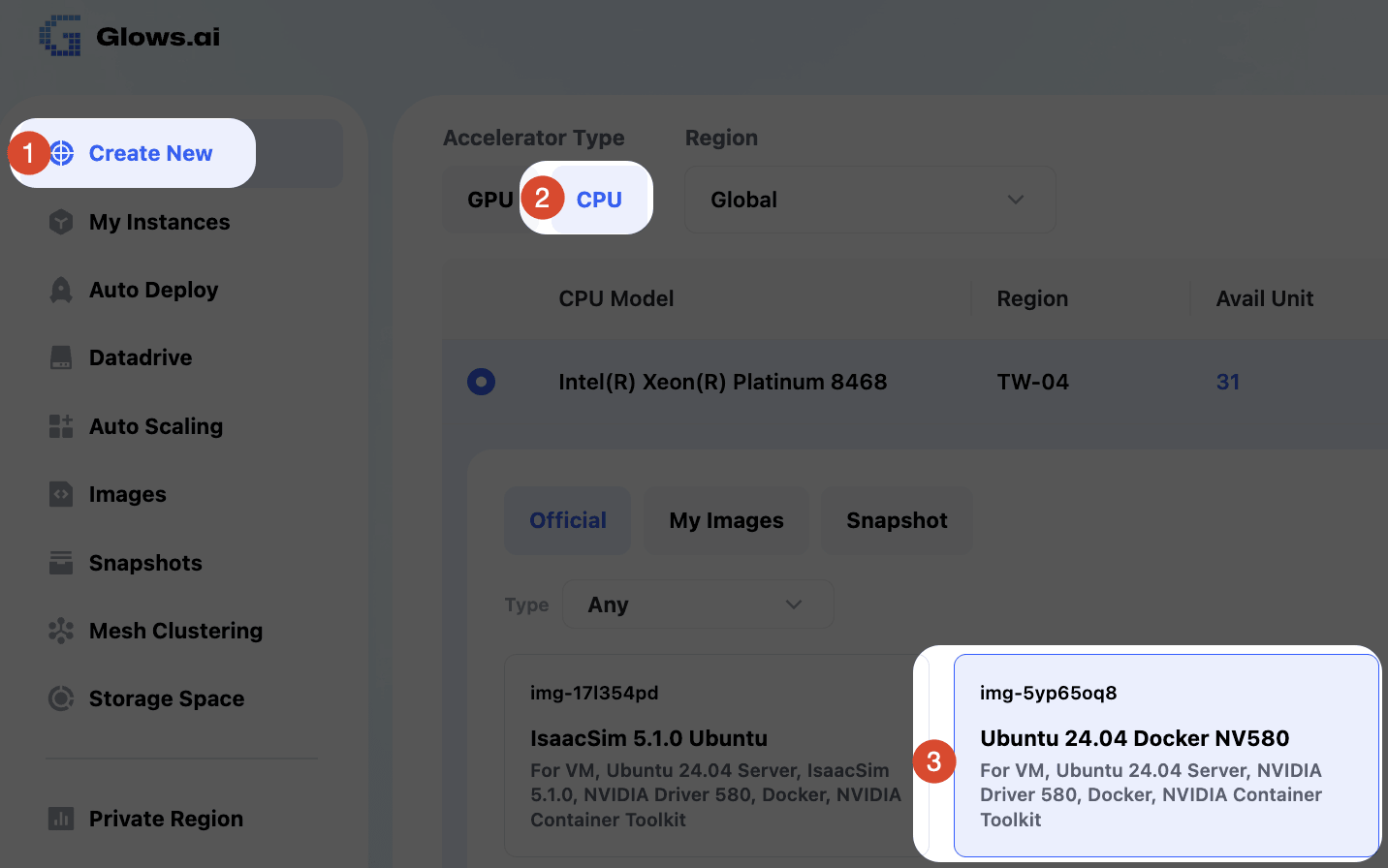
Create a CPU VM that supports Docker. The easiest way is to deploy LiteLLM directly via Docker. On the Glowsai platform, follow the diagram and select:
Create New → CPU → Ubuntu 24.04 Docker NV 580 image
Start LiteLLM
After the instance is successfully started and connected, you only need to create the following three files to quickly start LiteLLM:
docker-compose.yml: service startup configuration.env: environment variable configurationconfig.yaml: LiteLLM configuration file
docker-compose.yml Configuration
This file is used to define the container image and startup parameters:
services:
  litellm:
    image: docker.litellm.ai/berriai/litellm:main-stable
    container_name: litellm-gateway
    restart: unless-stopped
    env_file:
      - .env
    volumes:
      - ./config.yaml:/app/config.yaml:ro
    command: ["--config", "/app/config.yaml", "--port", "4001", "--num_workers", "4"]
    ports:
      - "0.0.0.0:4001:4001"
.env Environment Variables
Before starting the service, add the following content to the .env file:
# API master key (used for API calls and LiteLLM WebUI login)
LITELLM_MASTER_KEY=sk-glowsai

# PostgreSQL database connection string
DATABASE_URL=postgresql://glowsai:xxxxxxx@172.172.1.1:3306/postgres

# Whether to store model data in the database
STORE_MODEL_IN_DB=True
config.yaml Configuration
Add the following settings in config.yaml:
general_settings:
  master_key: os.environ/LITELLM_MASTER_KEY
  store_model_in_db: true
Start Service
After completing the above configuration, execute the following commands to start LiteLLM:
# Start service
docker compose up -d

# View container logs
docker logs -f litellm-gateway
LiteLLM will automatically connect to the database according to the DATABASE_URL in .env, and initialize and create the relevant tables.

Verify Database
At this point, reconnect to the remote database and enter \dt to see that many LiteLLM-related tables have been created in the database.
\dt

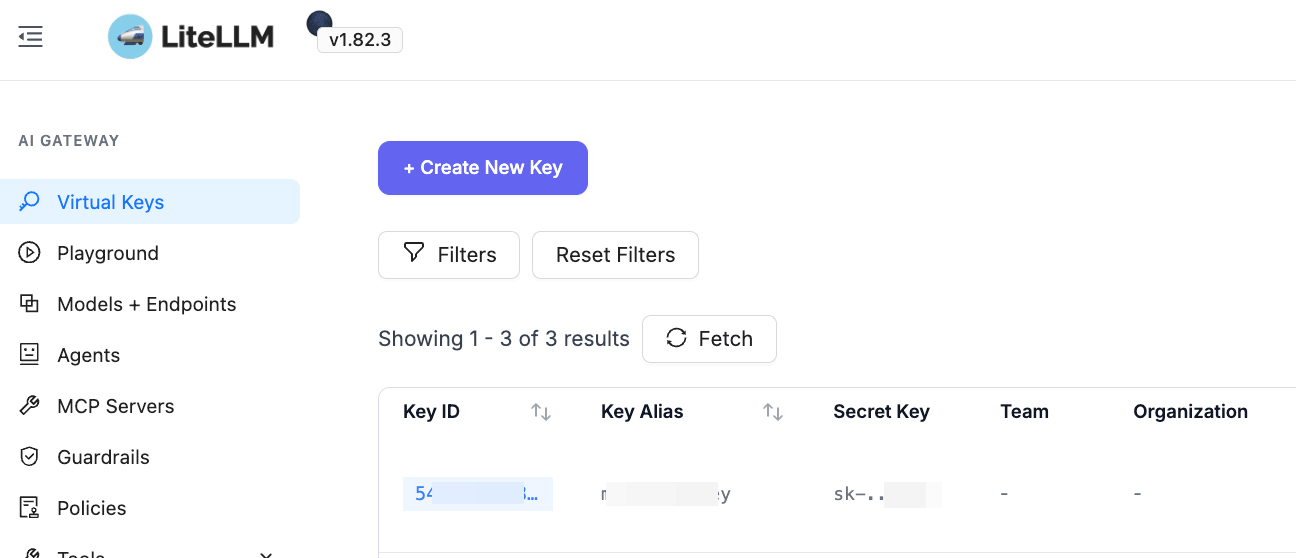
After the service is started, you can also log in normally to view LiteLLM backend data, create API keys, configure model providers and models, and perform other operations.
FAQs
1. What is the current usage workflow?
The service is currently available. Follow the Service Activation steps in the tutorial to log in and create a Matrix0 project. Then follow the Creating an Instance steps to create an instance on the Glows.ai Platform with a Public IP assigned.
After that, return to the Matrix0 interface and complete the Bind Instance operation. Once the binding is completed, you can obtain the connection information required to access the Matrix0 database within the instance.
2. Can the IP address and port be customized for remote database connections?
Yes. The IP address and port can be customized, but manual configuration by our engineers is required.
If you have customization requirements, please contact us here and provide the IP address and port you would like to use.
3、How do I access the LiteLLM WebUI after deployment?
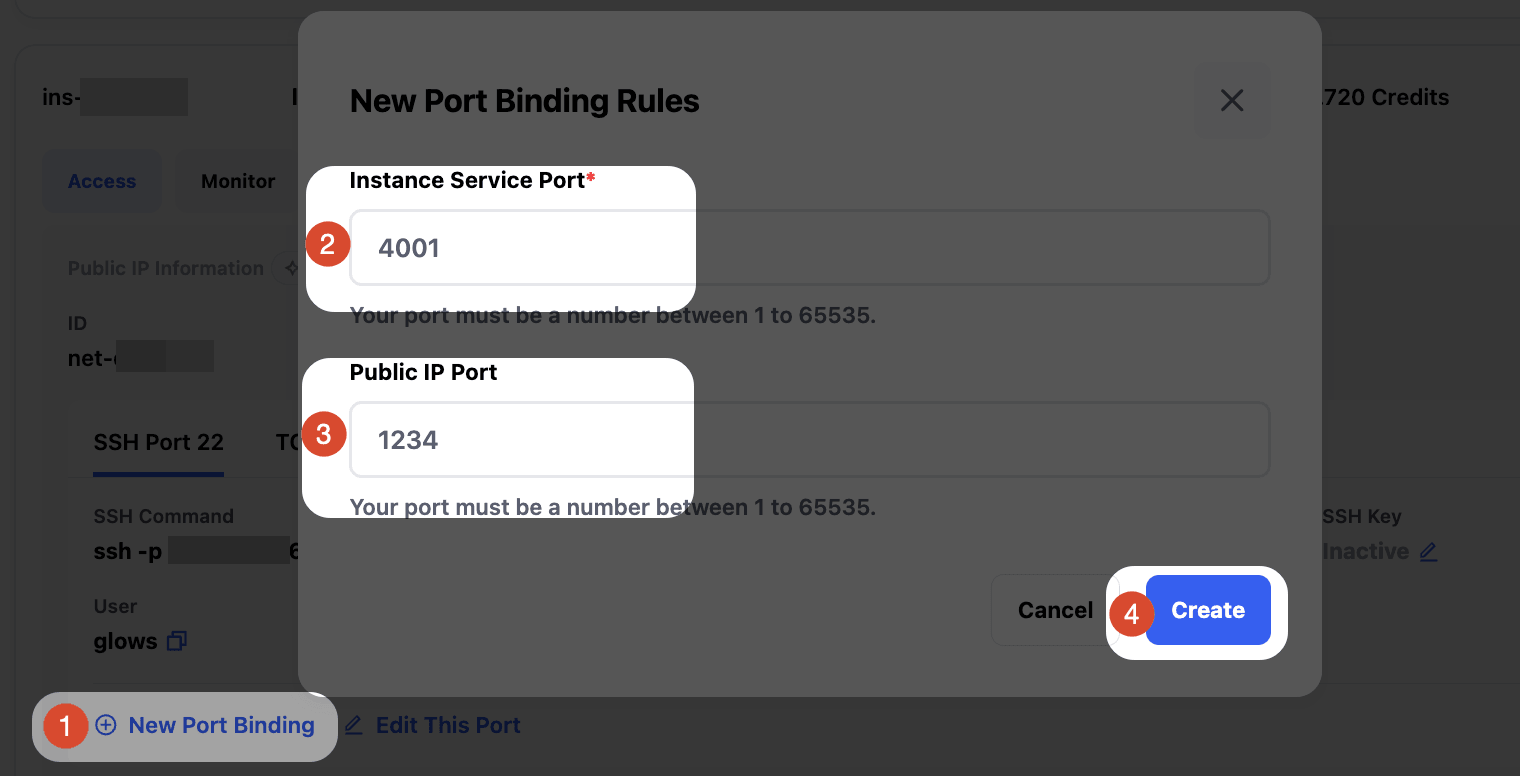
By default, LiteLLM runs on port 4001 within your instance. To access the WebUI from the public network:
Go to the instance interface Click New Port Binding Enter:
- Instance Service Port (e.g., 4001)
- Public IP Port
Click
Create. Once configured, you can access the service within the instance via Glows.ai Public IP + Public IP Port from the public network.
Contact Us
If you have any questions or suggestions while using Glows.ai, feel free to contact us via email, Discord, or Line.
Email: support@glows.ai
Discord: https://discord.com/invite/glowsai
Line: https://lin.ee/fHcoDgG